Join a Client Conversation
After you accept an intake, the conversation thread opens for your team. This is where the actual lawyer/client back-and-forth happens — confirmations, file requests, scheduling, payment requests, and the prep work that leads to an engagement.
This page covers what's in the chat surface, what the AI is and isn't doing, and the rhythm that converts an accepted intake into a signed engagement.
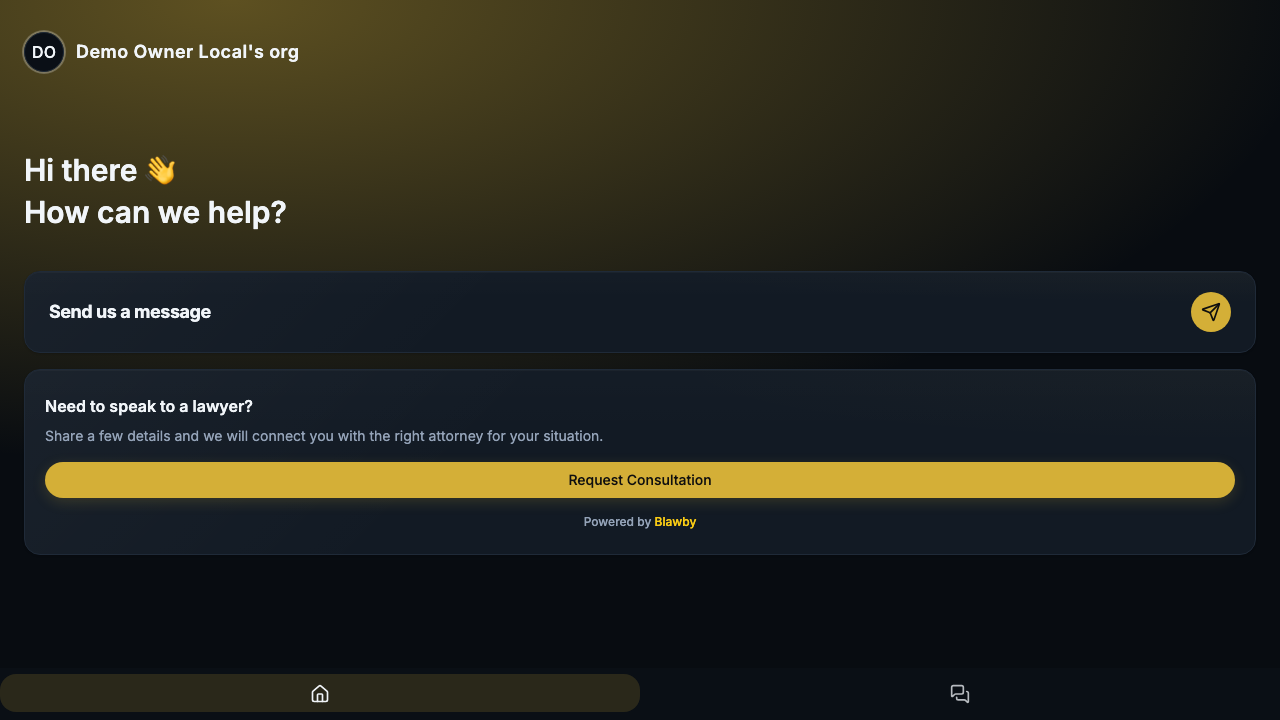
How the chat works
Blawby chat runs in different modes depending on context. After intake acceptance, the conversation is in CONVERSATION mode — a two-way thread where you (the firm) drive and the AI assists. Earlier modes:
| Mode | When |
|---|---|
REQUEST_CONSULTATION | The original intake conversation — AI walks the client through your template. |
ASK_QUESTION | A lightweight question the client asked outside intake. |
PRACTICE_ONBOARDING | The setup conversation when you first signed up. |
CONVERSATION | What you're working in now — post-acceptance, attorney-led, AI-assisted. |
You don't pick the mode manually; the platform routes the first message. After acceptance, conversation mode is the default.
What's in the message stream
A conversation thread renders several message types inline:
- Text — your messages and the client's, with markdown rendering, code blocks, and inline formatting.
- Files — attachment cards. 25 MB per file (images, video, audio, PDF, Word). Camera capture works on mobile.
- Quick-reply buttons — the AI suggests next-step actions extracted from your message ("Schedule consult," "Request retainer," "Open payment link").
- Payment cards — when you send a payment request, a Stripe Elements card renders inline. The client pays without leaving the thread.
- Engagement proposal — once you send an engagement, the proposal renders for the client to review and sign in-thread.
- Paralegal analysis — when the client uploads a document, the AI streams "📄 Analyzing…" status, then surfaces extracted facts (parties, dates, amounts, deadlines, risks).
Send your first message after acceptance
Three things to do in the first message:
- Confirm you reviewed the intake. Reduces client anxiety.
- Set expectations for next steps. "Within 24 hours we'll send a short engagement letter" beats "we'll be in touch."
- Tell them what you need next, if anything (one ID document, a contract scan, a court date confirmation).
A simple opener that works:
Thanks for the details. I've reviewed your intake and we can move forward. Next up: I'll send a short engagement letter outlining scope and fees. Please reply here if you have a contract or notice you'd like me to review before that goes out.
Keep it tight. The longer your first message, the longer the gap before they respond.
Requesting files
Two paths:
- Ask in chat. "Could you upload the police report?" — the client sees a clear inline request and uploads in the same thread.
- Standard intake enrichment fields. If documents are something you ask for on most matters, add them as enrichment fields on your intake template so they're collected automatically.
Always say what you need, why, and by when:
I need the contract you signed in March. It tells me which clauses apply to your termination notice. If you can upload it by Friday, that lets me have the engagement letter to you by Monday.
When the AI does paralegal analysis
When the client uploads a file, the paralegal AI may automatically stream analysis in chat — extracted parties, dates, deadlines, dollar amounts, and identified risks. The status updates ("📄 Analyzing… 📅 Found 2 deadlines… ⚠️ Flagged 1 risk…") show up live as the analysis runs.
This is meant for first-pass review — a fast read on what's in the document. It's not a substitute for your own review, but it puts the right starting questions in front of you faster than reading from page one.
Involving team members
Add team assignees on the matter (see Settings tab in the matter detail) so communication doesn't depend on one person:
- Attorney — legal direction, engagement decisions, settlement-level calls.
- Paralegal — document collection, scheduling, follow-ups.
- Billing/admin — invoices, payment requests, retainer top-ups.
All assignees see the conversation; their actions log to the matter's Activity tab.
What the client sees
The client sees the same thread you do, minus internal-only items:
- Internal notes on the matter (Notes tab) are hidden from them.
- Internal-only Activity log entries (e.g., "team member added") are hidden.
- Quick-reply buttons render slightly differently — more prominent on the client side.
If they reply on a different device, the conversation continues seamlessly. Better Auth sessions follow them across devices.
Practical patterns
Schedule the consult in chat. A two-message pattern works: "Here are three slots: Tue 2pm, Wed 10am, Thu 4pm. Reply with what works." Replace with a calendar link if you have one.
Send a payment request the same day you accept. Inline payment cards convert faster than emailed invoices. For consultation fees, the card lands directly in the thread.
Trigger the engagement letter as soon as scope is clear. Don't make the client chase the engagement. Send it the same day or the next morning while interest is high.
Next: send the engagement letter and collect payment
Once you have what you need, send the engagement and move the matter to active.