Review and Triage Client Intakes
Every new submission lands in your Intakes queue. Triage is the moment a submission becomes a matter — or doesn't.
This page walks through what you see in the queue, what to read on each submission, and the three actions available.
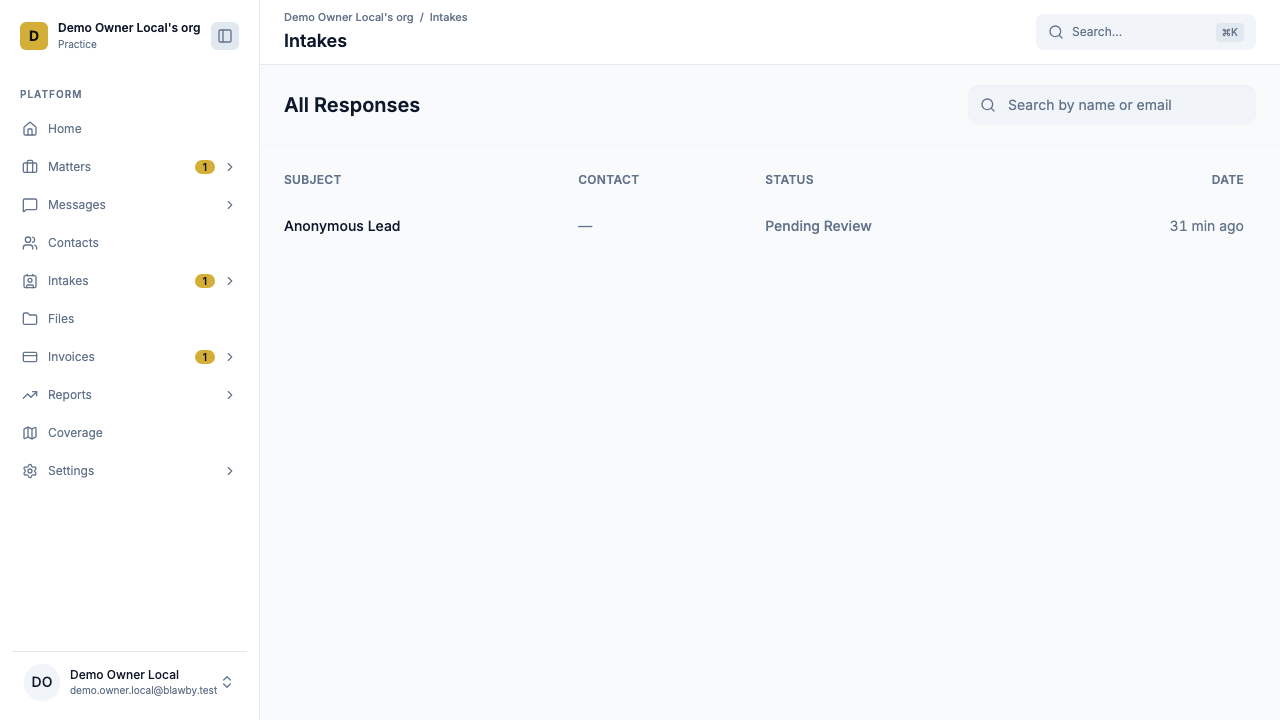
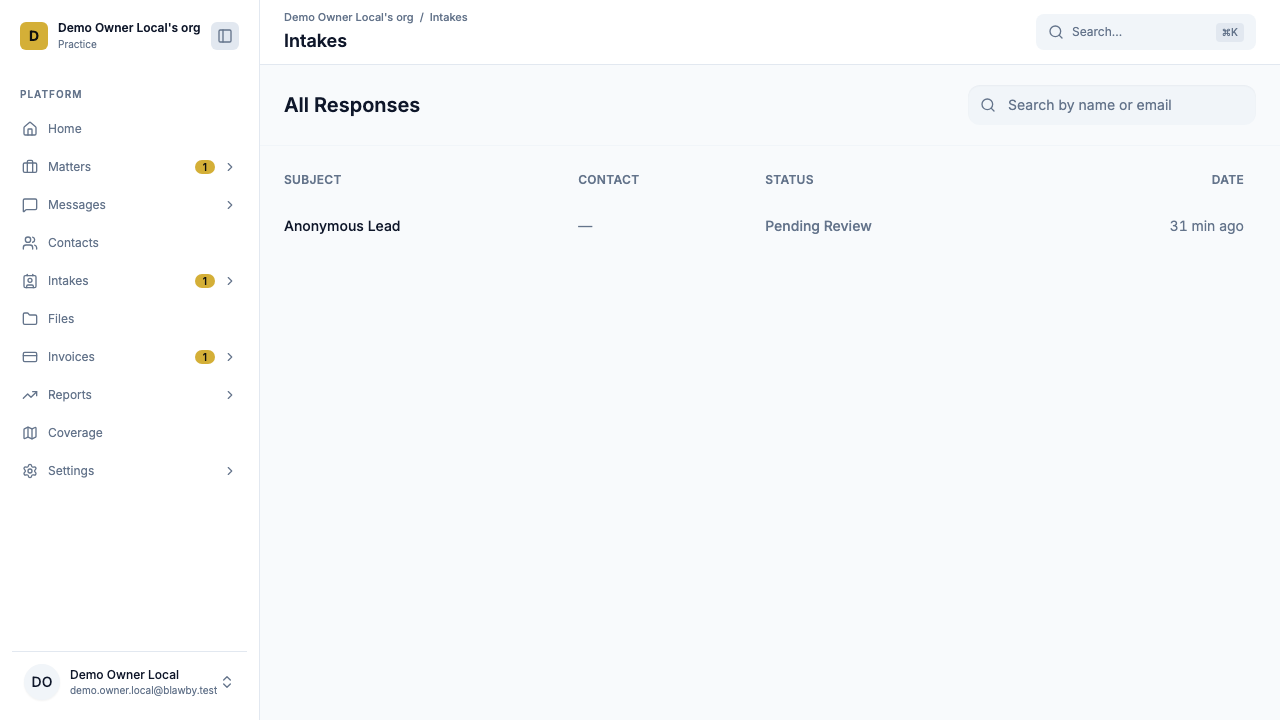
The queue
Open Intakes from your dashboard. The queue shows every recent submission with:
- Client name and contact.
- Matter type — what your template's matter-type field captured.
- Urgency badge — low / medium / high (color-coded).
- AI-generated case summary — a short title plus a one-paragraph gist.
- Submitted at — relative time so you can spot stale items.
- Status pill — New / In review / Accepted / Declined / Awaiting info.
Filter by status, search by name, sort by urgency. New + high-urgency submissions sit at the top by default.
What to read on a submission
Open a submission to see the detail view (IntakeDetailPage). Read in this order:
- Case summary — the AI's short-form description. Sets context fast.
- Urgency — high-urgency matters often have hard deadlines (statute of limitations, court dates) and warrant a same-hour response.
- Jurisdiction / location — confirm you're admitted there. If not, your decision is "decline with referral note."
- Contact — name, email, phone.
- Custom field answers — anything your template asked beyond the standard fields.
- Documents — files the client uploaded (police reports, contracts, photos). Open inline.
- Payment status — if your template has a consultation fee, confirm it's marked paid before accepting.
Action 1 — Accept
Use Accept when the matter fits your practice and you have enough to take the next step.
What happens automatically:
- A matter is created with the contact info, case summary, urgency, and uploaded files carried forward.
- The conversation thread becomes available for direct attorney/client communication.
- The client is notified that their intake was accepted.
- Your team receives an in-app and email/push notification (per your Notifications policy).
Then move directly into the conversation — see Join a Client Conversation.
Action 2 — Decline
Use Decline when the matter is outside your scope, conflicts with another client, or isn't a fit for any other reason.
What happens automatically:
- The submission is closed and removed from the active queue.
- The client is sent a clean, professional decline message (template-configurable in Settings → Intake templates).
- An internal note can be added, visible only to your team.
Best practice: keep client-facing decline messages brief. Save the reasoning for your internal note — that's where future referrals or conflict checks will look.
Action 3 — Ask AI to gather more info
Use this when the matter looks promising but is missing one or two facts you'd need to decide.
What happens:
- The widget conversation reopens for the client.
- The AI asks the specific follow-up questions you specified (or the standard enrichment-phase questions if you don't specify).
- Once the client answers, the intake returns to your queue with status Awaiting info → New.
- You triage again with the new context.
This is the highest-converting third option — much better than declining a thin lead. Common follow-ups: court dates, opposing party, prior counsel, document availability, jurisdiction confirmation.
Practical triage standards
- Review new intakes at least daily — same morning is better.
- Prioritize high-urgency first, regardless of submitted-at order.
- Use consistent accept/decline criteria across attorney and staff (write them down — see day-one checklist).
- Default to "ask AI for more info" when one key detail is missing rather than declining outright.
- Decline cleanly — short, professional, no legal advice in the message.
Edge cases
Two intakes from the same client. Common when a client doesn't see the confirmation. Accept the more complete one; decline the duplicate with an internal note linking them.
Intake from a jurisdiction you don't cover. Decline with a referral note in your internal record. If you have a partner firm, share the referral path in a personal email — don't put referral promises in the auto-decline template.
Intake with a paid consultation fee that you have to decline. Decline, then refund the consultation fee from the linked invoice. The refund processes through Stripe and notifies the client.
Possible conflict. Decline with conflict status noted. Make sure your template's standard decline language doesn't claim or deny representation of opposing parties.
Next: join the client conversation
When you accept, the next step is a fast, clear first message in the conversation thread.