Matters Overview
Once an intake is accepted and an engagement is signed, the matter is the day-to-day home for the work. Notes, time entries, files, invoices, and activity all live on the matter and stay tied to the client.
This page is the map: how Blawby unifies the work into a single ledger of record, so you can stop switching between tools.
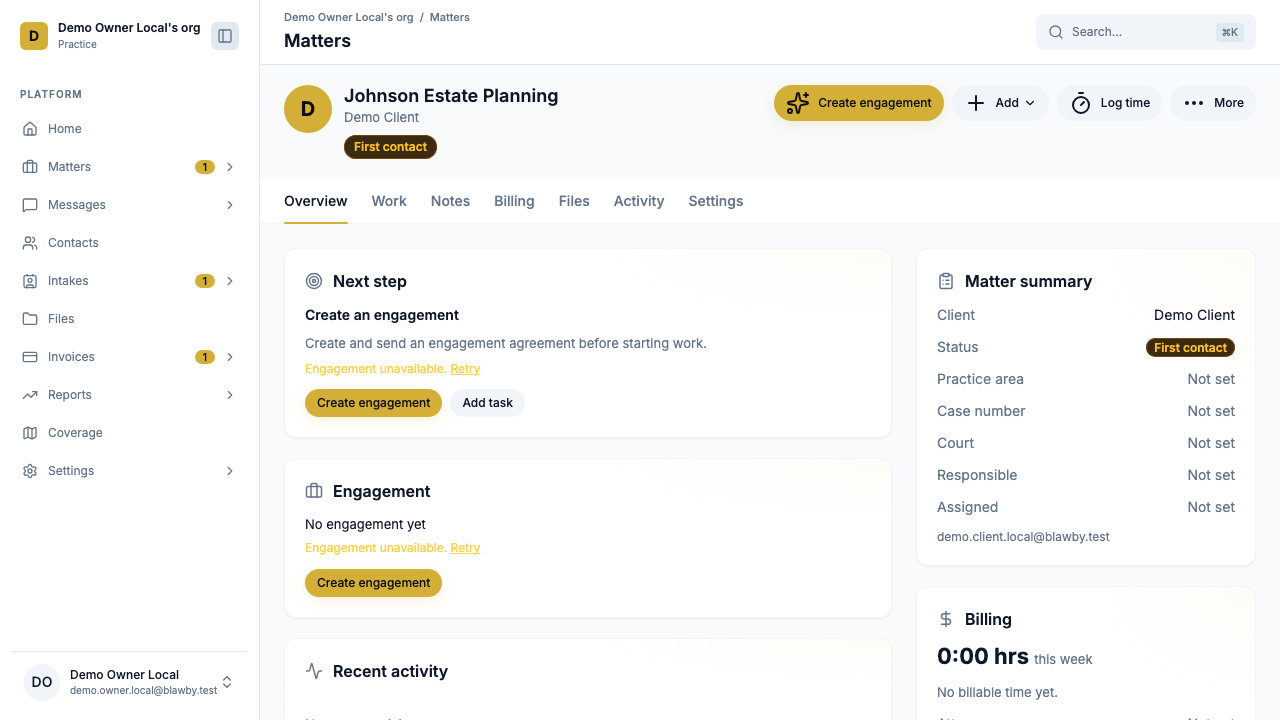
How a matter starts
Two paths:
- From an accepted intake. The matter is created automatically when you accept an intake from the queue. Contact info, case summary, urgency, and any uploaded files carry forward.
- From the Matters page directly. Click New matter, fill the form, and assign the team. Use this for matters that didn't come through the widget (existing clients, referrals, walk-ins).
Either way, you land on the matter detail panel with the unified view across the top.
The Unified Matter View
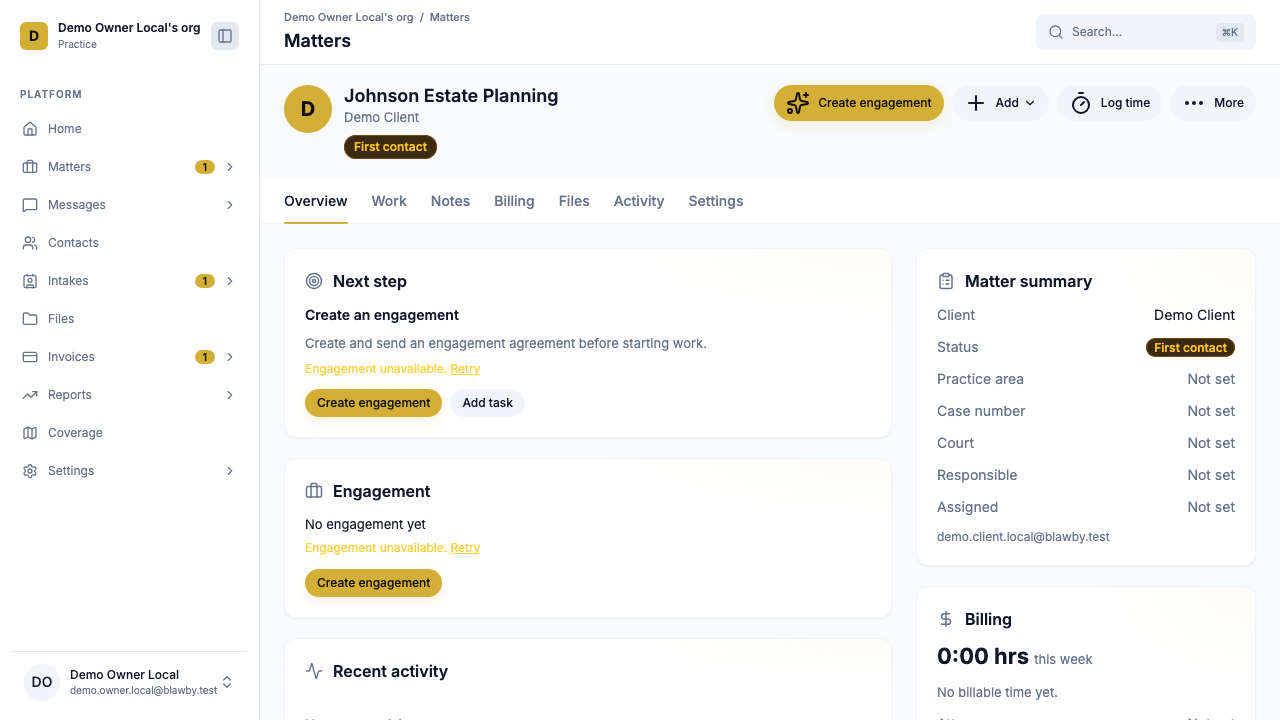
Overview
The home tab. Shows:
- Client info, parties, and short case summary.
- Status pill — Open, In progress, Closed, or Pro bono.
- The team assigned to the matter.
- Documents the client uploaded during intake.
- Quick actions: send a payment request, log time, send a message.
Work
Where the legal work itself is tracked.
- Tasks and milestones — what needs to happen next, by when, owned by whom.
- Notes — internal thinking, client-call summaries, strategy memos.
- Time entries — with start/end or duration, billable toggle, and the rate that applies (attorney vs. admin) pulled from the user's role.
- Work diary calendar — a calendar view of logged time across the matter.
The most common rhythm: log time at the end of each work session, write a one-line note describing what you did, and let the unbilled summary on the Billing tab roll up.
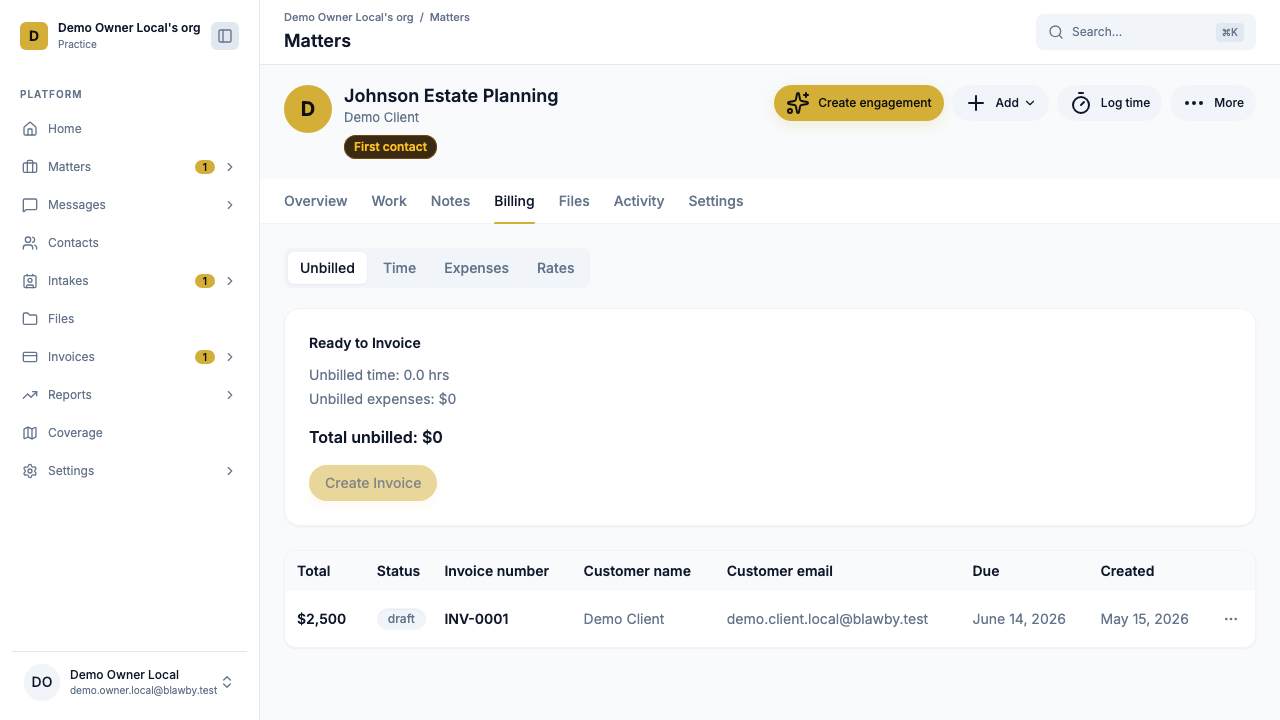
Billing
Where money becomes invoices.
- Unbilled summary — total billable hours, unbilled expenses, and any flat-fee or retainer line items waiting to be invoiced.
- Invoices — every invoice ever issued on the matter, with status (Draft / Sent / Paid / Overdue).
- Generate invoice — one click to roll the unbilled summary into an invoice. Edit line items, then send.
- Retainer balance — for retainer matters, the balance and history of draws.
Files
Documents on the matter, organized by folder.
- Upload from the lawyer side or accept files clients upload via chat or their portal.
- Preview images and PDFs in-browser, download anything else.
- 25 MB per file.
- File events log to the Activity tab automatically.
Notes
Internal-only notes, separate from client-visible communication. Use this for:
- Privileged work product
- Strategy threads between attorneys
- Conflict notes that shouldn't be shared
- Reminder pings to yourself before a hearing
Clients never see the Notes tab.
Activity
The audit trail. Every change on the matter logs here:
- Time entry added or edited
- Invoice created, sent, or paid
- File uploaded or removed
- Status changed
- Note posted
- Team assignment changed
This is what you reach for when a client asks "what happened on July 14" or when you're putting evidence together in a billing dispute.
Settings
Per-matter configuration:
- Billing type — flat fee, hourly, retainer, or contingency. Can change as the matter evolves.
- Billing rates — override the firm default if this matter has unique rates.
- Team assignment — who's on the matter and at what role.
- Status — Open / In progress / Closed / Pro bono.
Time tracking, end to end
Time-to-invoice is the most-used path through the matter. Here's the full loop:
- Log time on the Work tab: start/end or duration, description, billable toggle.
- The entry uses your role's rate — attorney rate or admin rate, set on the firm or overridden per user.
- Unbilled summary on the Billing tab shows the running total.
- Generate invoice — entries become line items.
- Send. The client gets an email with a hosted Stripe payment link.
- Status updates roll back to the matter as the client views, pays, or lets the invoice age.
If the matter has a retainer balance, the invoice draws from it before billing the client for the difference.
What the client sees
Clients have a separate, simplified view of their own matters in the client portal — no time entries, no internal notes, no team-assignment internals.
What they do see:
- Matter overview with status and parties.
- Invoices (and a one-tap pay button for unpaid ones).
- Files they've uploaded plus any documents you've shared with them.
- Engagement letter (if they signed one) and any updates.
- A chat thread with the firm.
Anything tagged internal-only (Notes, internal Activity entries) stays on the lawyer side.
Reassigning a matter
Cases change hands. To reassign:
- Open the matter → Settings tab.
- Update the team — add the new assignees, remove who's no longer on it.
- Add a Note explaining the handoff.
The new assignees pick up the full context: the timeline, all notes, all activity, all files. Nothing is lost in handoff.
Closing a matter
When work is complete:
- Confirm there's no unbilled time or expenses sitting on the Billing tab.
- Send the final invoice.
- Once paid, change status to Closed in the Settings tab.
- (Optional) Archive — the matter is read-only after this.
Closed matters stay searchable in the directory. Time entries, files, and activity are preserved for audit and reference.
Common questions
What if a matter switches billing types mid-way? Update the billing type in Settings. Existing invoices and time entries don't change; new entries follow the new type. Common case: an uncontested family-law matter moves to litigation and switches from flat to hourly.
Can a matter have more than one client? Yes — co-clients (e.g., two parties in a joint estate plan) are configured on the engagement letter and carry through to the matter.
Where do conflicts and jurisdiction checks live? On the engagement, not the matter. By the time a matter exists, those checks have already been recorded.
Next: trust-to-operating transfers
For retainer and trust-eligible matters, the matter's billing flow connects directly to your trust account. The transfer workflow keeps that clean.