Manage Matters
Once an engagement is accepted, the matter is your day-to-day home for the work — billing, files, communication, and the audit trail. This page is the operational workflow.
For the full structure (the unified view, the unbilled-summary → invoice flow, the client portal view, reassignment, status transitions), see Matters Overview.
The daily rhythm
Most attorneys settle into something like this:
- Open the matter when starting work.
- Log time at the end of the work session — start/end or duration, billable, with a one-line note.
- Drop files as you collect them. Drag and drop into the Files tab, or accept what the client uploads in chat.
- Update notes at decision points. The Notes tab is internal-only; use it for strategy and privileged work product.
- Send an invoice when the unbilled summary justifies it (monthly, on milestones, or when a retainer needs a top-up).
- Communicate through the matter's chat thread, not external email — keeps the audit trail intact.
Logging time
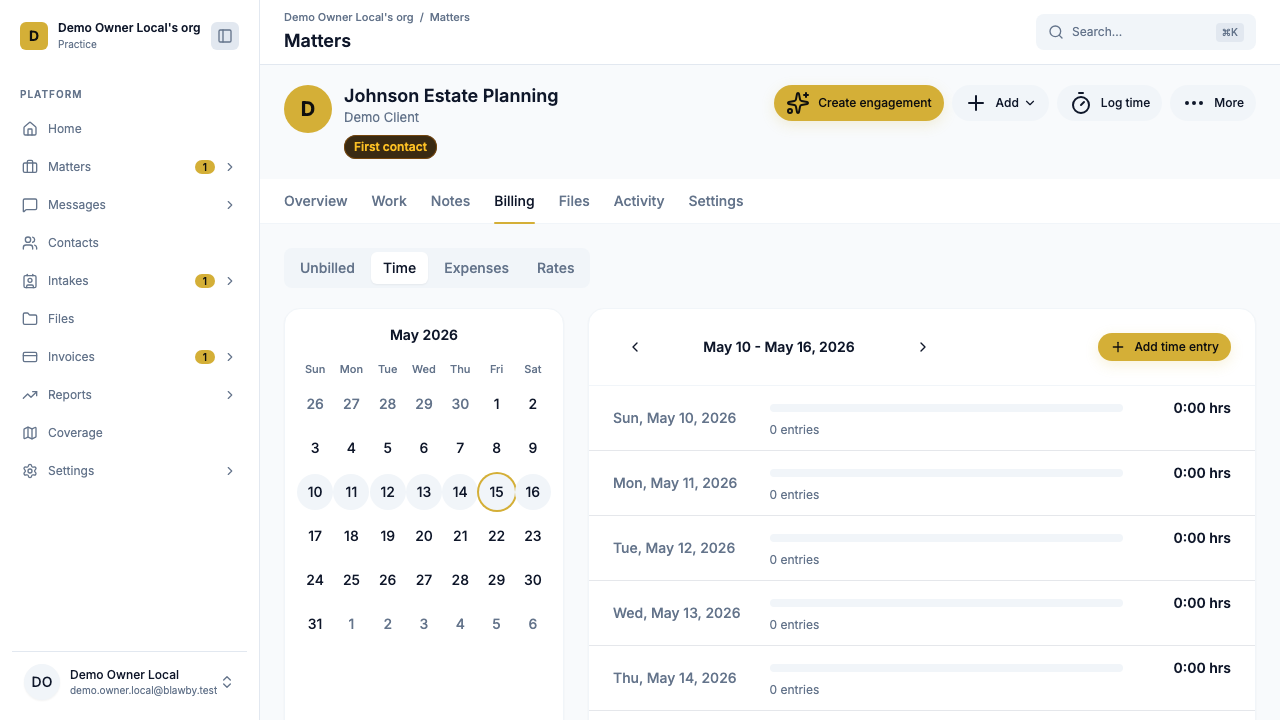
On the Work tab, click Add time entry. Each entry includes:
- Start/end times or duration.
- A one-line description (will appear on invoices).
- Billable / non-billable toggle.
- The rate — pulled automatically from your role on the practice (attorney rate vs. admin rate). Override per matter in Settings tab if this matter has unique rates.
Discipline matters here. Logging at the end of each session, with a real description, is what makes invoices fast and disputes rare.
Generating an invoice
When you're ready to bill:
- Open the Billing tab.
- Review the unbilled summary — billable hours, expenses, flat-fee line items, retainer draws waiting to be billed.
- Click Generate invoice. The line items pull from the summary.
- Edit if needed — adjust descriptions, remove items, add a flat fee or expense.
- Send. The client gets an email with a Stripe-hosted pay button.
For retainer matters, the invoice draws from the retainer balance first; if there's a shortfall, the client pays the difference. When the balance gets low, send a top-up invoice from the same flow.
Files
The Files tab is the matter's document store:
- Upload by drag-drop or click-to-upload.
- Accept files the client uploads in chat (they appear here automatically).
- Preview images and PDFs in-browser.
- Up to 25 MB per file.
- Every upload, download, and delete logs to the Activity tab.
Organize by folder if a matter accumulates dozens of documents. Most matters are fine with a flat list.
Internal notes vs. client communication
Two separate surfaces — keep them straight:
- Notes tab — internal-only. Strategy, privileged work product, conflict notes, reminder pings. Clients never see this.
- Chat thread — visible to both sides. Use this for everything that's part of the lawyer/client relationship.
If you accidentally put privileged material in chat, delete the message immediately and document the deletion in Notes. The Activity tab will show the chat-message deletion regardless.
Team collaboration
The team assigned to the matter (configured on the Settings tab) all see the same matter, with role-appropriate access:
- Attorney — strategy, engagement decisions, settlement-level calls.
- Paralegal — document collection, scheduling, draft work.
- Billing/admin — invoices, retainer top-ups, payment monitoring.
Activity logs show who did what — useful both for billing review and for handoffs.
Reassigning a matter
Cases change hands. To reassign:
- Open the matter → Settings tab.
- Update the team — add new assignees, remove old ones.
- Add a Note explaining the handoff context.
The new assignees pick up the full thread and timeline. Nothing is lost.
Closing a matter
When work is complete:
- Confirm there's no unbilled time or expenses sitting on the Billing tab.
- Send the final invoice, including any remaining retainer reconciliation.
- Once the final invoice is paid, change status to Closed in the Settings tab.
- (Optional) Archive — the matter is read-only after this.
Closed matters stay searchable in the directory; their time entries, files, and activity are preserved indefinitely for audit.
Common operational questions
Two attorneys logged time on the same matter at the same time. Both entries log; rates apply per user role. The invoice will show both.
A client wants to dispute a time entry. Open the matter's Activity tab — every entry is timestamped with the user who logged it and what description they wrote. Use this in the discussion; resolve in writing in the Notes tab.
An expense came in after the invoice was sent. Add the expense; it'll show on the next unbilled summary. Don't edit a sent invoice — generate a follow-up.
The matter is going pro bono mid-flight. Update billing type to Pro bono in Settings. Existing entries keep their billable status; toggle them to non-billable individually if you want to zero out the unbilled summary.
Next: trust transfers and payment exceptions
For retainer matters, a trust-to-operating workflow keeps fund handling clean. Pair that with the failed-payment SOP for full operational coverage.