Set Up Client Intake
Intake in Blawby has four moving pieces: the widget clients fill out, the template that defines what's collected, the notification policy that gets a human looking at it, and the triage flow that turns a submission into an active matter.
This page walks through all four end-to-end. Each section links to a deeper reference for the part that's most often customized.
1. The widget — what your clients see
The widget is the embeddable chat surface. Clients open it from your website, your widget URL, or any link you share. The AI walks them through your intake template, collects files when needed, optionally takes a consultation fee, and submits to your queue.
What it supports out of the box:
- 18 languages with full RTL for Arabic. Auto-detects browser language; clients can switch.
- File uploads up to 25 MB per file (images, video, audio, PDF, Word).
- Conditional fields — the AI only asks follow-ups when a parent answer matches.
- Practice branding — your firm's name, logo, and accent color, all set in Settings.
For installation, see Install the Chat Widget. The fastest path is sharing your widget URL directly; embedding the script on your firm site is a 5-minute addition you can do later.
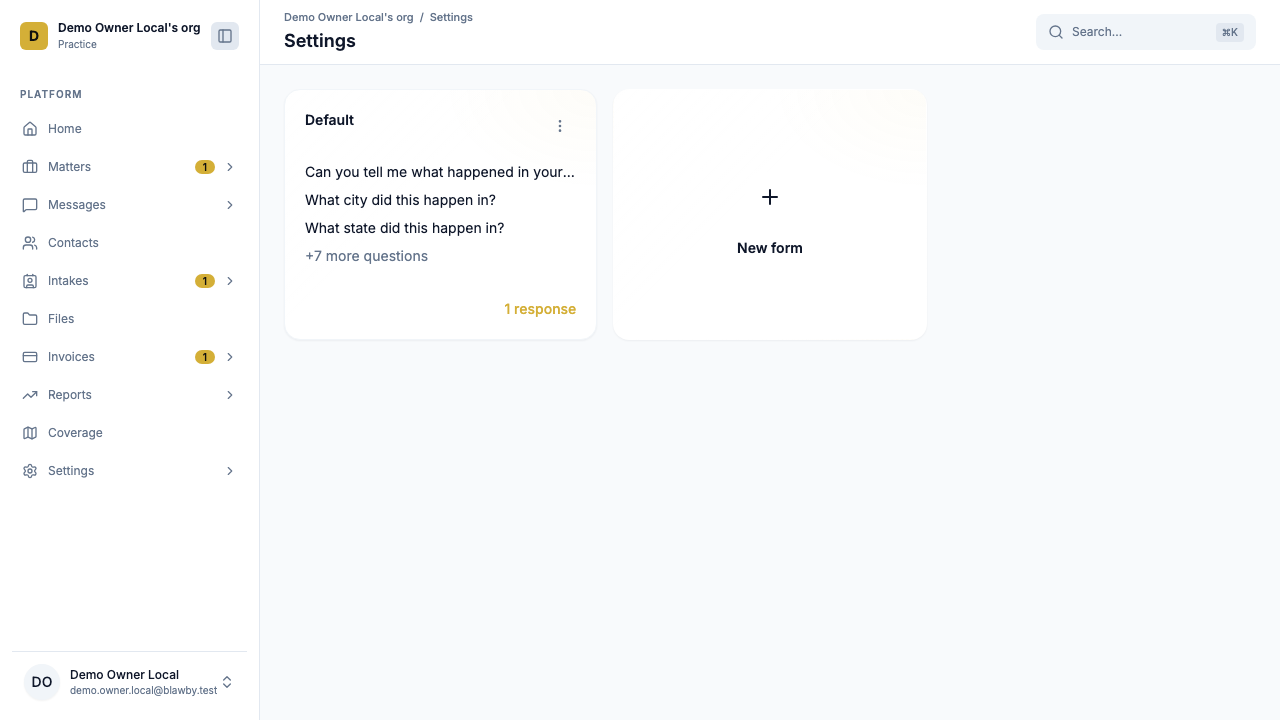
2. The template — what the AI collects
The intake template is the script the AI follows. It defines:
- Required fields that gate submission.
- Enrichment fields offered after submission as "strengthen your case."
- Consultation fee (optional) charged before submission.
- Legal disclaimer shown once before contact collection.
Most setup time goes here. Don't over-stuff required fields — the shorter the required list, the higher the completion rate. See Intake Templates for the full model, conditional-logic syntax, and a fee-gating walkthrough.
3. Notifications — make sure a human sees it fast
A new intake is only as useful as the speed of the first response. Configure who gets pinged in Settings → Notifications.
| Channel | Use it for |
|---|---|
| In-app | Every team member; this is the bell-icon count in the dashboard. |
| At least the intake owner, ideally a backup too. | |
| Push (OneSignal) | When you want phone-buzz speed. Each user opts in from their own device. |
Define a backup intake owner for after-hours and vacation coverage. A new submission with no human looking at it for 24 hours is a lead lost to the next firm.
4. Triage — turn submissions into matters
When an intake arrives, the queue lives at Intakes in your dashboard. From the detail view, your three options are:
- Accept — opens the conversation thread and creates the matter; you take it from there.
- Decline — politely closes the loop with the prospective client.
- Ask AI to gather more info — sends the conversation back to the widget for follow-up questions before you decide.
For the full triage workflow see Review and Triage Client Intakes. The "ask for more info" flow is especially useful for matters that look promising but are missing one or two critical facts.
Best practices
Template
- Keep the required list short. Five fields or fewer.
- Use conditional logic. Fewer questions on screen = higher completion.
- Test on mobile. Most intake submissions come from phones.
- Set a fee only if it's part of your policy. Gating on a $0 charge is wasted friction.
Notifications
- One primary, one backup. Single point of failure on intake notifications is the most common operational gap on day two.
- Push for speed, email for record. Use both.
- Re-check after vacations. People silence push and forget to re-enable it.
Triage
- Define accept/decline criteria in writing. Hold weekly debriefs the first month.
- Use "ask AI for more info" for borderline submissions — it's higher-conversion than declining a thin lead.
- Move accepted intakes to a matter the same day. Stale intakes go cold fast.
Common pitfalls
- No backup intake owner — the most common day-two problem.
- Required fields a client can't reasonably answer. "Is this negligence?" is for the consult, not the form.
- Inconsistent triage criteria across staff — you'll get conflicting client experiences fast.
- Intake template never revisited — review monthly for fields that consistently come back empty.
Next: triage submissions
Once your widget is live and notifications are routing, the queue starts filling up. Move to triage.